
Enable Update Notifications for the 1xBet App
Trying to keep 1xBet current in a mobile browser means watching the address bar and reloading the page by hand. On a phone with the 1xBet application installed, the system can handle that job for you instead. The phone raises a banner in the notification shade the moment a fresh build is published. What follows is how to give it permission to do that.
What happens when you enable update notifications
| Point | Detail |
|---|---|
| Where you see it | The notification shade and the app’s own settings menu |
| What triggers it | A new 1xBet version being published |
| What you do next | Open the download entry and approve the package installer prompt |
| Time involved | A minute or two on Wi-Fi, plus a few seconds to tap through |
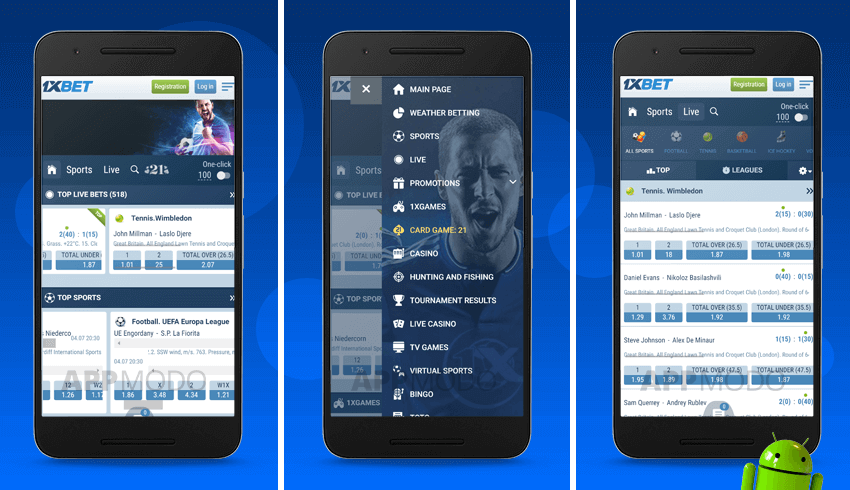
The banner appears at the top of the shade with the 1xBet icon and a short line about a pending update. Tapping it opens the download entry, and the package installer prompt asks you to confirm the installation. If the prompt does not appear, the Files app holds the downloaded file and you can tap it there. Everything stays inside the phone’s normal screens, with no need to visit the 1xBet website again.
Regulators publish general advice on this kind of software maintenance. The Gambling Commission offers gambling regulator guidance for players who use applications on their phones.
Give the phone permission to notify you
Start in the phone’s Settings app. Open Apps, find 1xBet in the list, then tap Notifications and make sure the main toggle is on. If it is off, every banner the application tries to raise gets blocked before you ever see it. On a typical Android phone the whole path takes about ten seconds from tap to tap.
Some phones group notifications under categories. Look for one labelled Updates or General and confirm it is enabled too. On certain devices this screen also carries an option about showing notifications on the lock screen. Turn it on if you want the 1xBet alert visible without unlocking the phone.
- Open Settings, then Apps, then 1xBet.
- Tap Notifications and switch the master toggle on.
- Check each category beneath it, especially Updates.
- Allow lock screen display if the option exists.
Allow the installer to run the downloaded file
When the notification shade shows the download entry, tap it and the package installer prompt opens. Android asks whether you want to install an update to this existing application. Answer yes and the process finishes in a few seconds. On a mid-range phone the progress bar moves from zero to complete in roughly eight seconds.
If the prompt never appears, go to the Files app and tap the 1xBet file sitting in Downloads. On first run the system may send you to the Install unknown apps screen for your Files app. Flip the toggle there, return, and tap the file again. The 1xBet update then installs exactly like any other application on the phone.
Set up Google Play updates for the 1xBet application
If you installed the application from Google Play, the update switch lives inside the store itself. Open the Play Store page for the app and find the two small sliders that control automatic downloads. Tap the slider labelled Auto-update apps and a dialog appears with three choices: Over any network, Over Wi-Fi only, and Don’t auto-update apps. That control panel covers the whole 1xBet app in one place.
Play only fetches the new package while the device sits on Wi-Fi or an unmetered connection. On a home network that usually takes a minute or two on Wi-Fi, and the badge appears the moment the file lands. The 1xBet icon updates without any prompt from you.
- Open the Play Store, tap your profile icon, then Settings, then Network preferences.
- Tap Auto-update apps and choose Over Wi-Fi only or Over any network.
- On the 1xBet app page, check that the button reads Open rather than Update.
- Turn off Data saver in Settings if downloads seem to stall on mobile data.
Turn on notifications inside the app settings
The second switch sits in your phone settings rather than inside 1xBet. Go to Settings, then Apps, then find the entry for the application. Tap Notifications and make sure the master toggle is switched on, otherwise every channel below it stays silent. On most phones this takes about five seconds from opening the Settings app to flipping the switch.
Inside the list of channels, enable updates and service messages. Sports news and promotional push are separate switches, so leave those as you prefer. With both update channels active, the 1xBet home screen banner and the system notification shade show the same release message.
On some skins the option appears under Notifications and then App notifications. If you cannot see any channel list, open the application once, place a test bet slip on any market, and return to settings. The full channel list usually builds after the first session.
Wait for the download and run the installer
Once the package finishes, a heads-up card appears in the notification shade with the app icon and a small progress bar. Pull the shade down and you will see the download entry sitting there, marked as complete. The whole transfer on a normal home connection takes a minute or two on Wi-Fi.
Tap the entry and the package installer opens with its usual prompt. It asks for confirmation, then shows a short Installing line that lasts a few seconds. If the file arrived from a source other than the store, Android routes you first to the Install unknown apps screen. Enable the Files app there before the same prompt runs again. For an independent build, the 1xbet app free to download page lists the current APK for direct install.
When the installer finishes, it shows App installed with Done and Open buttons. Tap Open and check the home screen of 1xBet to confirm the new release loaded correctly.
Quick check after every release
- Open Settings, then Apps, then the application entry, and confirm Auto-update is allowed.
- In the Play Store, verify the button reads Open rather than Update.
- Pull down the notification shade and clear any finished download entry.
- Open the 1xBet application and check the home screen for the updated interface.
- Tap the menu, then Settings, and confirm your account data still loads.
Run this list whenever a new release appears, and it takes less than a minute. Skipping any single step usually explains why the update never reached the device.
Common mistakes that block update notifications
- Leaving data saver on, which stops the Play Store from fetching any package over mobile data.
- Switching off the update channel in the phone settings while leaving sports news enabled.
- Installing from an external source, then never opening the store page to check for a newer build.
- Force-stopping the application right after a download, which cancels the package installer before it runs.
- Ignoring the Install unknown apps prompt, so the Files app never gets permission to hand the file over.
Each of these blocks the notification chain at a different point. Work back through the list, fix the switch you find, and the 1xBet update notice will arrive the next time a release ships.